First steps
Your first ten minutes after installing - admin account, first monitor, notification channel, status page, language settings and adding Bekci to your phone.
On this page
Bekci is running and you can open the panel in your browser. This page walks you through what to do in the first ten minutes. On desktop the menu is on the left; on a phone it's at the bottom of the screen, and some sections such as Settings are inside the More menu.
1. Admin account#
The first time you open the panel, the Welcome screen asks you to create the admin account:
- Username: 3–32 characters; letters, digits, periods, hyphens and underscores.
- Password: at least 8 characters. Type the same in Password (again).
Click Create account and you're taken straight into the panel. This screen appears only once, while there are no users yet.
2. Add your first monitor#
- On the Monitors page, click Add monitor (or New at the top right).
- Choose HTTP(S) as the Monitor type (to watch a website or an API).
- Give it a clear Name (e.g. “Company website”) and enter the site's address in URL (e.g.
https://example.com). - Check interval is how often it's checked: at least 20 seconds, at most 24 hours. 60 seconds is a good start.
- Click Add monitor.
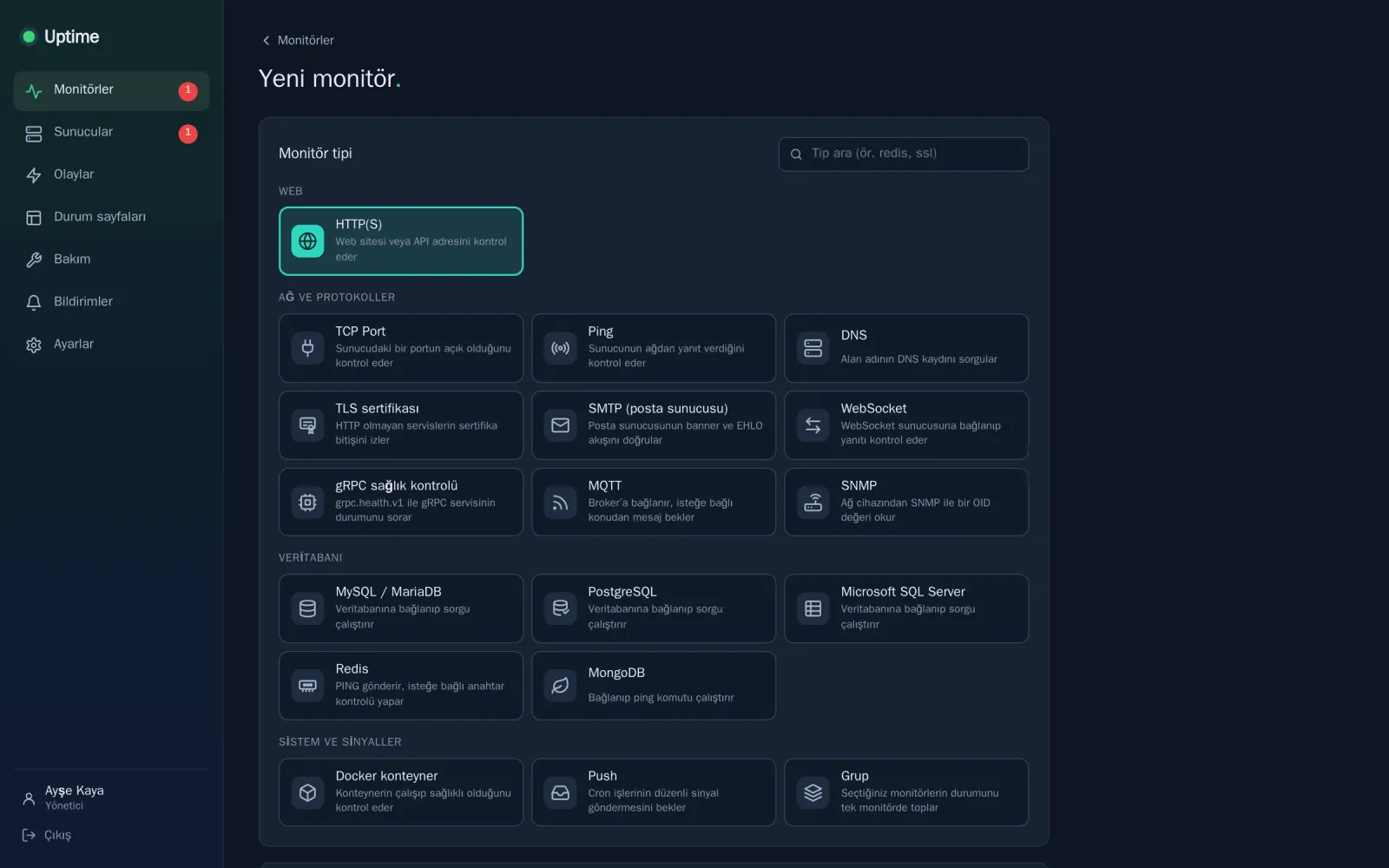
Monitor types#
The Monitor type picker offers 18 types in four groups:
| Group | Types | What for |
|---|---|---|
| Web | HTTP(S) | Websites and APIs; headers, body, authentication, keyword and JSON query checks, SSL expiry alerts |
| Network and protocols | TCP Port, Ping, DNS, TLS certificate, SMTP, WebSocket, gRPC, MQTT, SNMP | Servers, ports, domains, mail servers and network devices |
| Database | MySQL / MariaDB, PostgreSQL, Microsoft SQL Server, Redis, MongoDB | Connects to the database and runs a simple query |
| System and signals | Docker container, Push, Group | Container health; cron jobs sending regular signals; combining several monitors into one status |
The Push monitor works the other way round: Bekci doesn't check anything, it waits for your cron job or script to report in at regular intervals. After you save the monitor you get a unique address; your job calls it every time it runs, and if the call doesn't arrive the monitor goes down:
curl -fsS "https://bekci.example.com/api/push/TOKEN?status=up&msg=ok&ping=120"Send status=down to report a failure.
3. Add a notification channel#
Add at least one channel so you hear about it when a monitor goes down. There are 24 channels, including WhatsApp, Telegram, email, Slack, Discord, Microsoft Teams, ntfy, PagerDuty and webhooks.
- On the Notifications page, click New channel.
- Pick the channel under Type and fill in the details it asks for (e.g. Bot token and Chat ID for Telegram).
- Try it with Send test notification; the test message should arrive within a few seconds.
- Tick Add to new monitors by default so new monitors get this channel automatically. To add it to your existing monitors as well, tick Add to all existing monitors.
- Click Save.
4. Create a status page (optional)#
A status page is a public page that shows your customers the state of your services, planned maintenance and past incidents.
- Under Status pages, click New page.
- Enter a Title (e.g. “Acme Service Status”) and an Address (slug) made of lowercase letters, digits and hyphens (e.g.
acme). - Under Groups and monitors, enter a group name (e.g. “Websites”) and pick your monitors with Add monitor.
- Turn on Published. You can protect the page with a Page password if you want.
- Click Create page.
To publish the page on a separate domain such as status.example.com, use the page's Custom domain field; the domain's DNS record must point to your server and your proxy must route that name to Bekci (how to do it with the Caddy install).
5. Language settings#
Bekci's interface is available in English and Turkish. There are three separate language settings:
| What | Where | Affects |
|---|---|---|
| Interface language | Settings → My account → Language → Interface language (the sign-in screen has a language switch too) | Only your own account; applies on every device you sign in on |
| Status page language | Page language in the status page editor | Visitors of that page (status texts, dates, durations) |
| Notification language | Settings → General → Notification language | All notification messages sent to every channel |
6. Add it to your phone#
You can add Bekci to your phone like an app; there's nothing to download from a store:
- iPhone and iPad: open the panel in Safari → Share button → Add to Home Screen.
- Android: open the panel in Chrome → menu at the top right → Install app (in some versions Add to Home screen).
Opened from the home screen icon, it runs full screen and updates live. On Android the Install app option only appears when the panel is opened over HTTPS; it doesn't appear for an address such as http://SERVER-IP:8080.
What next?#
- Watch your servers: install the server agent for CPU, RAM, disk and network metrics.
- Check from other locations: add a check location to check your monitors from another city or network too.
- Add your team: create accounts with the Admin, Editor or Viewer role under Settings → Users; for your customers you can create accounts that only see the monitors assigned to them.
- Silence notifications during planned maintenance: the Maintenance section.
- Move from another service: import your UptimeRobot account or Uptime Kuma backup under Settings → Backup / Restore.
- Set up backups: Updates, backups and rollback.
Something missing or wrong on this page? Report it on GitHub or email [email protected]